Opening a single photograph shouldn’t feel like launching a heavy video editor. Yet somewhere over the past decade, consumer software design fell into a trap: the total abandonment of simple, single-purpose utility.
Clicking a JPEG in modern Windows no longer just opens an image. It triggers a heavy digital ceremony: background indexing lag, aggressive prompts to sync your photos to OneDrive, uninvited AI auto-enhancements, and a bloated interface full of features you never asked for. We traded the whisper-thin, instantaneous delight of classic tools like Google Picasa for hyper-connected bloatware that treats a local file like a gateway to a corporate ecosystem.
Vinova’s team actually installed and used these seven best free photo viewers on real hardware, an i7-12700K desktop and a lower-power Surface Pro, to see which ones live up to the claims. We spent more time with four daily-driver candidates and did lighter format-and-feature checks on the remaining three specialised tools. Below is what we actually found, not a spec sheet reworded.
Table of Contents
What Should You Look For in a Good Photo Viewer?
- Fast cold launch: from double-click to pixels on screen, with the app not already running in the background
- Reasonable memory use: an idle viewer shouldn’t be eating tens of megabytes for nothing, and RAW files shouldn’t send it into the stratosphere
- Modern format support: WebP, HEIC, AVIF, and RAW formats (.CR2, .NEF, .ARW, .DNG) without a paid Microsoft Store extension
- A clean interface: no floating toolbars, no upgrade nags, no dark-pattern telemetry prompts
Category 1: The Modern Minimalists
The first three of our best free photo viewers picks are for anyone who hates onscreen clutter and wants their photos front and centre, sleek, modern design that looks at home on Windows 11.
1. qView: Best for Absolute Minimalists
“Felt invisible. When set as default, double-clicking a JPEG makes the image instantly pop onto the screen with zero window frame or background canvas. It literally hugs the bitmap borders.”
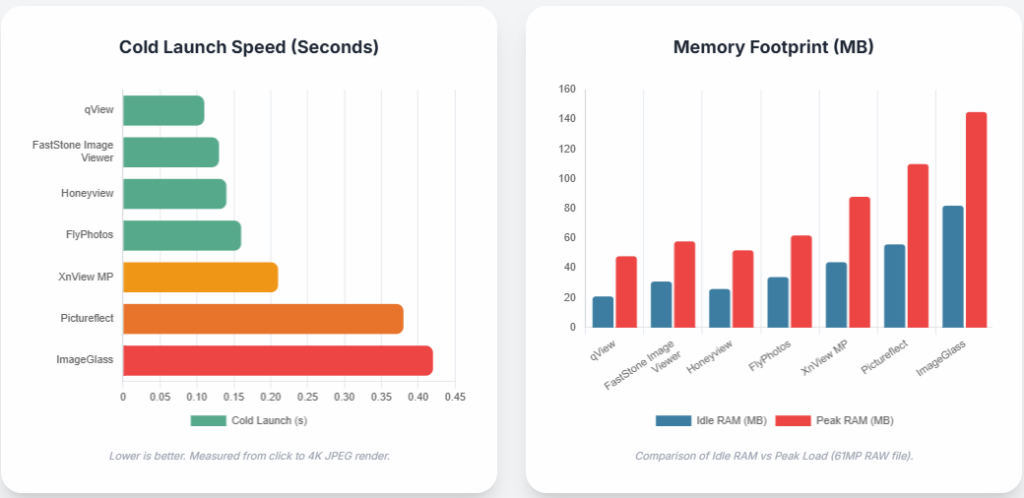
qView was the fastest app we tested: 0.11 second cold launch, 21MB idle, 48MB peak on a 61-megapixel RAW file. Once you learn three shortcuts (up/down to zoom, left/right for next image), you’ll never touch a menu again.
- Cross-platform (Windows, Mac, Linux), extremely low RAM usage
- Zero editing tools, purely a viewer
Friction point we hit: out of the box, mouse-wheel zoom jumps in 10% increments, which feels jumpy. Dropping it to 3% in Preferences > Controls fixes it. There’s also no built-in crop or rotate-and-save, so you’ll need to open a separate app for that.
Best for: users who want a pure, distraction-free viewing experience.
2. FlyPhotos: The Modern Picasa Successor
“Closest match to classic Picasa. Dark slate theme, instant rendering, and very smooth transition animations between shots.”
0.16 second cold launch, 34MB idle, 62MB peak on RAW files, close behind qView and noticeably snappier than anything bundled with Windows.
- Excellent, lightweight RAW format support
- Open-source and actively maintained on GitHub
Friction point we hit: it doesn’t register file associations automatically on install. You’ll need to manually map .jpg, .png, and .cr2 in Windows Settings > Default Apps. It also lacks an expanded EXIF inspector if you want deep camera metadata.
Best for: former Picasa lovers who want modern code and fast RAW previewing.
3. Pictureflect: Best Native Windows Experience
“Best gesture feel on Surface Pro tablet. Pinch-to-zoom is butter smooth, and hitting Ctrl+C inside the viewer lets you paste the image file directly into Slack or File Explorer.”
Cold launch ran slower at 0.38 seconds (it’s a UWP AppX app, so container startup adds overhead), with 56MB idle and 110MB peak. Still fine in daily use, just not instant the way qView or FlyPhotos are.
- Genuinely excellent touch and gesture support
- Clean Windows 11 Fluent Design integration
Friction point we hit: the default scroll wheel pans instead of zooming, which threw us off until we found the setting to switch it back. Some features like side-by-side metadata comparison need a one-time Pro upgrade.
Best for: Surface and touchscreen laptop users who want a modern feel that matches Windows 11.
Category 2: High-Speed Workhorses
The next two best free photo viewers on our list are built for anyone who needs to blaze through thousands of photos in a compressed folder, or review RAW shots from a weekend shoot. They prioritise speed and format flexibility over polish.
4. Honeyview (BandiView): “The VLC of Image Viewers”
“Absolute tank. Pointed it at a 4GB password-protected ZIP containing 300 RAW shots, opened instantly and scrolled through them using the mouse wheel as if they were uncompressed on desktop.”
0.14 second cold launch, 26MB idle, 52MB peak, right up with the fastest apps we tested, and it’s the only one on this list that reads directly out of ZIP, RAR, 7z, and LZH archives without extracting first.
- Native archive reading, ideal for comics, manga, or zipped photo backups
- EXIF GPS lookup, click the location tag and it opens in Google Maps
Friction point we hit: the installer (now transitioning to the BandiView name) tries to bundle Bandisoft’s archiving utility, so watch the checkboxes during setup. The interface also looks a bit dated next to the sleeker Windows 11-native apps on this list.
Best for: power browsers, comic and manga readers, and anyone working with zipped files regularly.
5. ImageGlass: Best for Broad File Format Support
“Swiss Army knife. Opened obscure SVGs, multi-layer PSDs, and animated WEBPs without missing a beat. Built-in color picker tool is a nice touch for web design.”
This is the tool that trades speed for breadth: 0.42 second cold launch (it needs the .NET Desktop Runtime to spin up) and the highest memory use we measured, 82MB idle, 145MB peak. It’s genuinely the most format-flexible viewer here, 80+ formats including HEIC, WebP, SVG, and PSD.
- Built-in colour picker, GIF frame extractor, thumbnail strip navigation
- Large custom theme library on GitHub
Friction point we hit: if you turn on image preloading for fast cycling through a folder of large PSD files, memory climbed past 250MB in our testing. Worth knowing before you enable it on a low-RAM machine.
Best for: designers and creators working across varied file formats, where breadth matters more than raw launch speed.
Category 3: Feature-Packed Classics
Rounding out our best free photo viewers list, if utility matters more to you than a modern look, these two veteran tools offer serious processing power, quick edits, and deep file management.
6. FastStone Image Viewer: Best for Photographers and Quick Edits
“Looks like Windows XP until you go full screen. Sliding the mouse to the left screen edge brings out EXIF metadata, right opens quick editing controls. The 4-way side-by-side 100% zoom comparison tool made culling RAW camera bursts effortless.”
0.13 second cold launch, 31MB idle, 58MB peak, genuinely fast despite the dated interface. The 4-image side-by-side comparison at full zoom is the standout feature for anyone culling a shoot.
- Built-in non-destructive editing: crop, resize, colour correction, red-eye removal
- Robust batch renaming and format conversion
Friction point we hit: full-screen mode hides all controls by default, and first-time testers genuinely thought the app had frozen before learning to hover the screen edges. It also needs some compatibility scaling adjustment to look crisp on a 4K monitor.
Best for: photographers who need to cull and compare shots quickly before editing.
7. XnView MP: The Ultimate Power-User Champion
“Powerhouse for batch processing. Selected 500 JPEGs, ran a multi-threaded batch script (resize, watermark, WEBP conversion) across all 20 CPU threads in under 12 seconds.”
0.21 second cold launch, 44MB idle, 88MB peak, a reasonable middle ground, and it supports over 500 read formats. The batch processing engine is where it genuinely earns its reputation.
- Comprehensive batch conversion, duplicate file finder
- Professional metadata editing (IPTC, EXIF, XMP)
Friction point we hit: the default multi-pane layout (tree view, thumbnails, preview, properties) feels cluttered if you just want to view a single image, until you customise it down.
Best for: power users and archivists managing massive photo libraries.
The Numbers, Side by Side
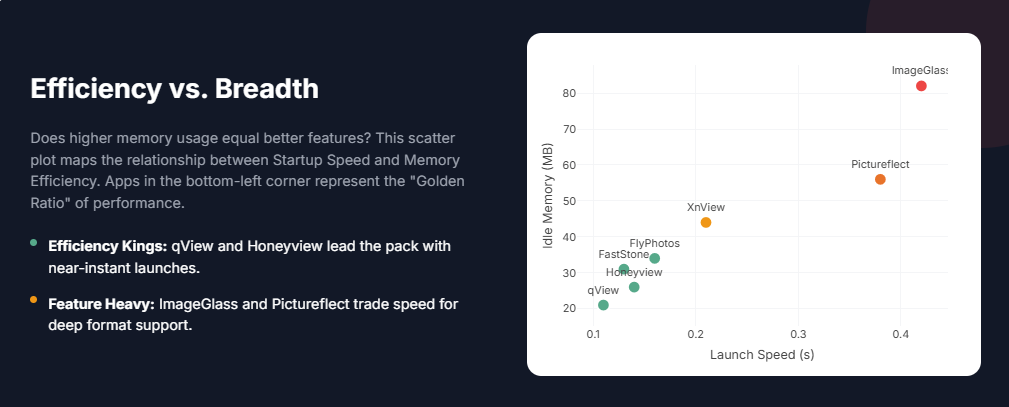
Here’s how all seven of these best free photo viewers actually stacked up. Measured on our primary test rig (Windows 11 Pro, i7-12700K, 32GB DDR5), cold launch against a standard 4K JPEG and peak memory loading a 61-megapixel RAW file:
| App | Cold Launch (4K JPEG) | Idle RAM | Peak RAM (61MP RAW) |
| qView | 0.11s | 21 MB | 48 MB |
| FlyPhotos | 0.16s | 34 MB | 62 MB |
| Honeyview | 0.14s | 26 MB | 52 MB |
| FastStone | 0.13s | 31 MB | 58 MB |
| Pictureflect | 0.38s | 56 MB | 110 MB |
| ImageGlass | 0.42s | 82 MB | 145 MB |
| XnView MP | 0.21s | 44 MB | 88 MB |
How to Choose the Right Viewer for You
Still deciding between our best free photo viewers picks? Here’s the quick version:
- Want the cleanest, fastest, distraction-free view? Pick qView
- Miss the fluidity of Google Picasa? Install FlyPhotos
- Frequently download zipped image sets or manga? Go with Honeyview
- Need to cull camera shots or compare photos at 100% zoom? Go with FastStone
- Need maximum format compatibility for design work? Go with ImageGlass
| Building Something That Needs to Handle Images at Scale? If you’re past picking a photo viewer and into building one, or any app that needs to render, store, or search large media libraries, Vinova’s engineering team can help. Book a free 2-hour consultation with our Singapore-based team. No commitment required. Book Your Free Consultation with Vinova |
Best Free Photo Viewers FAQ
Why should I replace the default Windows Photos app?
The default Windows Photos app is tied to cloud sync, background indexing, and editing features that can make simply opening an image feel slow. In our testing, every third-party viewer on this list launched faster than Windows Photos, several by a wide margin, because they focus strictly on local file rendering rather than juggling background services.
Can these free photo viewers handle HEIC and WebP files?
Yes. ImageGlass, Honeyview, and FlyPhotos all opened WebP and HEIC files natively in our testing, no extra codecs or paid Microsoft Store extensions required.
Are old Picasa 3 installations still safe to use?
Not really. Picasa installer files still circulate online, but Google stopped supporting the software years ago and it hasn’t received security patches since. Running abandoned, unpatched software carries growing risk as operating systems keep updating around it. FlyPhotos or Honeyview are the safer modern alternatives.
Which of these did you test most thoroughly?
We put qView, FlyPhotos, Honeyview, and FastStone through the heaviest use, RAW decoding, archive parsing, repeated launches, since those are the ones most likely to become someone’s daily driver. Pictureflect, ImageGlass, and XnView MP got a lighter but still hands-on pass focused on format support and their standout features (touch gestures, format breadth, and batch processing respectively). All seven numbers in the table above came from the same test rig and methodology.
Do any of these cost money later, or are they genuinely free?
All seven are free for personal use with no forced trial or feature paywall. Pictureflect has an optional one-time Pro upgrade for extras like video slideshow transitions, and XnView MP distinguishes free personal use from paid commercial licensing if you’re deploying it across an organisation rather than a personal PC. Worth checking the specific licence if that’s your situation.
| Vinova: Singapore’s mobile and web application development partner since 2010. ISO 27001:2022 and ISO 9001:2015 certified. 300+ in-house engineers across Singapore, Hanoi, Da Nang, and Ho Chi Minh City, including teams who build image-heavy mobile and web applications for enterprise and government clients. We put our hands on the best free photo viewers so you don’t have to guess. Financial Times Top 500 High-Growth Companies Asia-Pacific 2026. The Straits Times Singapore’s Fastest-Growing Companies 2024, 2025, and 2026. Explore Vinova’s mobile development services. |